Meta Description: Learn how to use CamScanner offline to access saved documents without internet, including event tickets, travel documents, IDs, receipts, and files for offline editing.
Introduction
Can you use CamScanner without internet? Yes. Documents that have already been scanned and saved can remain available for offline access, making CamScanner useful when mobile data or Wi-Fi is unavailable or unreliable.
This matters in situations where connectivity can fail at the exact moment a document is needed. A crowded stadium may have overloaded mobile networks, a remote destination may have weak coverage, or a meeting room may have unreliable Wi-Fi. Preparing important documents in advance gives you a digital backup that does not depend on loading an online webpage at that moment.
CamScanner can support this workflow from document capture and organization to offline access and editing. The key is to prepare documents while connected, keep essential files available, and continue working when connectivity is limited.
1. Keep Event Tickets Available When Stadium Networks Get Crowded
One of the clearest use cases for offline document access is a large sporting event.
Imagine arriving at a stadium with tens of thousands of other fans. Your e-ticket is stored online, but the mobile network becomes congested just as you reach the turnstile. The ticket page keeps loading, while the entrance line continues moving.
A practical solution is to prepare a backup before leaving.
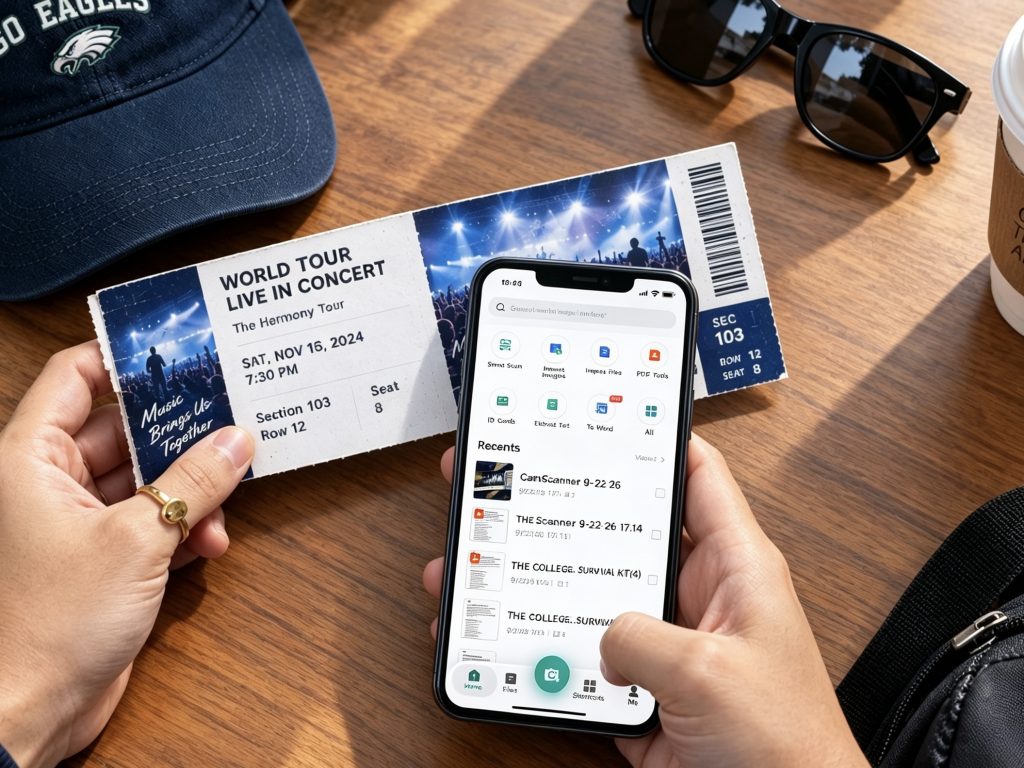
With CamScanner, you can create a clear scan of your e-ticket and save the copy for offline access. Important information such as the match, date, and seat can remain visible, allowing you to open the saved document without waiting for a network connection.
The same workflow can be used for multiple event documents. Tickets for different matches can be combined into a single PDF, while related documents can be organized together for faster access.
For example, a Match Day folder could include:
- Match tickets
- ID documents
- Boarding passes
- Hotel confirmations
- Other entry-related documents
For identity documents, ID Card Mode can help capture both sides of an ID card cleanly. Custom Tags can make tickets and IDs easier to identify, while Cloud Sync can keep the organized document set available across supported devices when connectivity is restored.
Important: A scanned ticket is a backup copy, not a replacement for the official ticket. If an organizer requires the original e-ticket for verification, follow the organizer’s requirements.
2. Prepare Travel Documents Before You Lose Connectivity
Travel is another situation where offline document access can be useful.
Airports, trains, remote destinations, and international travel can all involve periods of weak or unavailable connectivity. If a document exists only behind an online account or webpage, accessing it may become difficult when the connection fails.
Before traveling, scan important documents such as:
- Passport or ID copies
- Visa documents
- Boarding passes
- Hotel confirmations
- Travel insurance documents
- Reservation information
You can organize related scans into PDFs and keep them ready for offline access.
The basic workflow is simple:
Scan → Save → Organize → Access when needed
This does not replace required original documents. Instead, it provides a prepared digital copy that can remain accessible when an online page is unavailable.
3. Scan Important Documents in Low-Connectivity Environments
Offline preparation is not limited to travel and events.
You may need to capture a document in a classroom, conference room, temporary workplace, underground location, or crowded public venue where the connection is unstable.
In these situations, the important step is to capture the information when you receive it rather than waiting for a better connection.
CamScanner can be used to digitize:
- Meeting handouts
- Printed instructions
- Receipts
- Forms
- Event materials
- Reference documents
- Paper notes
Once the document has been captured and saved, you can organize it for later use. When connectivity returns, the file can be incorporated into your broader cloud-based workflow.
This makes offline scanning particularly useful for capture-now, organize-later workflows.
4. Continue Working With Documents When You Are Offline
Offline access and offline editing are related, but they are not the same thing.
Offline access means you can open documents that have already been saved and access their information without relying on an active internet connection.
Offline editing goes a step further: it allows you to continue making changes to a document when you are offline.
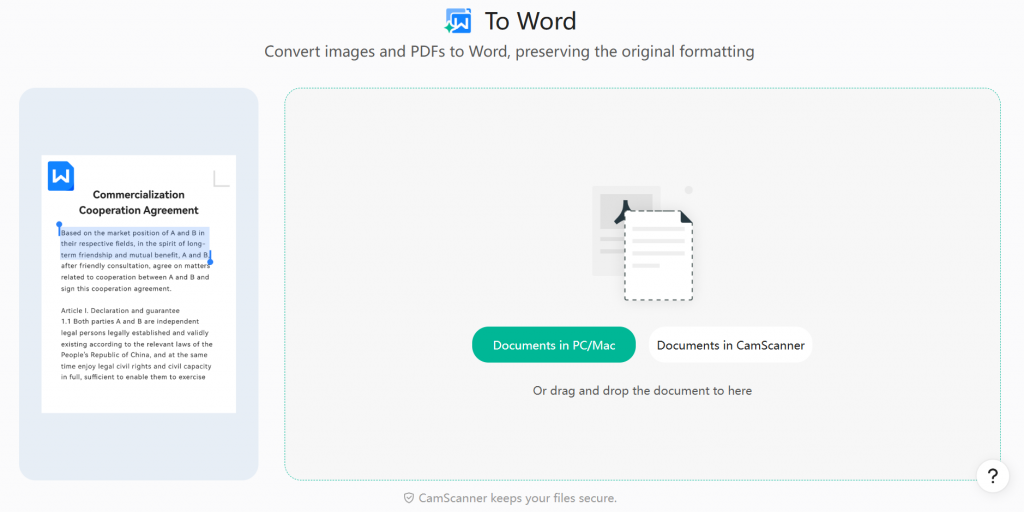
CamScanner’s desktop offline editing workflow is designed for users who need to continue working with documents without an active internet connection. After the connection is restored, the document can return to a connected workflow.
This makes offline editing useful for situations such as:
- Working during a flight or commute
- Editing documents in a location with unreliable Wi-Fi
- Continuing work during a temporary network outage
- Preparing files before reconnecting to the internet
For a detailed look at this capability, read CamScanner’s guide to offline editing.
The broader workflow is:
Prepare while connected → access or edit offline → sync when connected again.
5. Keep IDs and Other Important Documents Organized
An offline document is most useful when you can find it quickly.
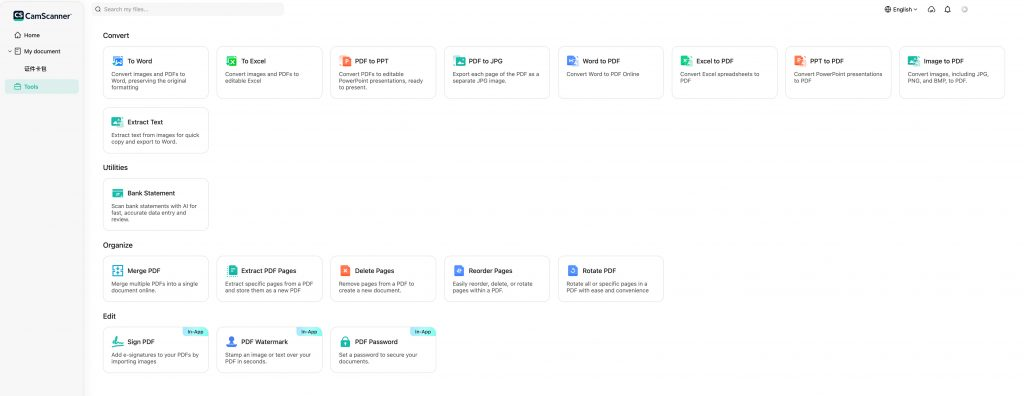
Instead of leaving tickets, IDs, receipts, and travel documents scattered across different apps, you can organize related files in CamScanner according to the situation in which you will need them.
For example:
Travel folder
- Passport copy
- Visa
- Boarding pass
- Hotel confirmation
Event folder
- E-ticket
- ID copy
- Transportation information
- Reservation confirmation
Work folder
- Meeting documents
- Receipts
- Forms
- Reference materials
Custom Tags can provide another way to identify files quickly, while PDFs can consolidate multiple scanned pages into a single document.
For documents containing sensitive personal information, organization should also be paired with protection. Password Protection can help secure files containing IDs and other private information.
The result is more than an offline file: it is an organized digital document backup that is ready before you need it.
6. Use OCR to Make Scanned Information Easier to Reuse
Offline access is about availability, but scanned documents can become more useful when their information is searchable and reusable.
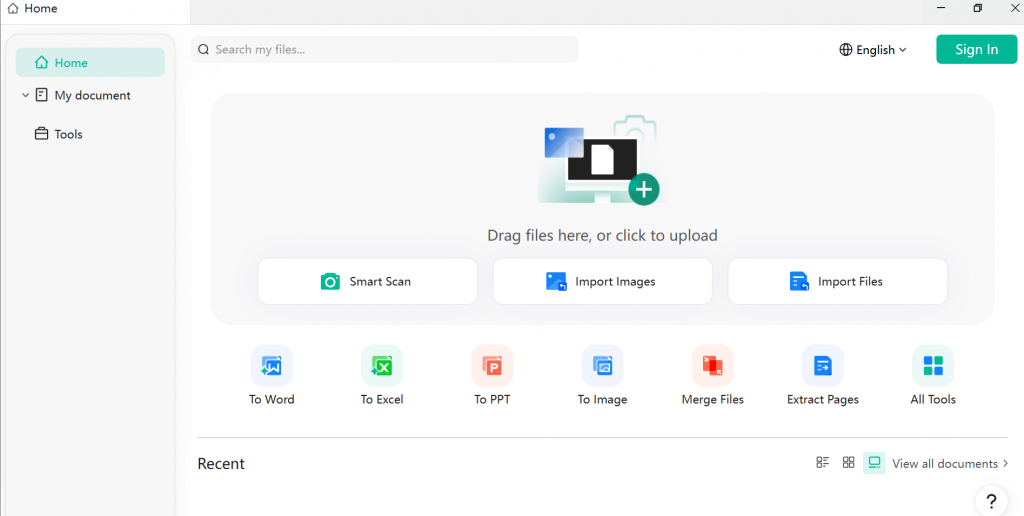
CamScanner’s OCR can recognize text in scanned documents, helping turn captured information into searchable digital content.
This can be useful for documents such as:
- Printed notes
- Receipts
- Forms
- Study materials
- Meeting documents
- Reference pages
For example, you might scan several pages before entering an area with poor connectivity. Afterward, OCR can help you locate specific information instead of manually reviewing every page.
This creates another useful workflow:
Capture information offline → recognize the text → organize it → reuse it later.
7. Build an Offline-Ready Document Kit Before Important Events
The most effective way to use offline document access is to prepare before connectivity becomes a problem.
For an upcoming trip, event, exam, meeting, or business activity, identify the documents you are most likely to need and create a dedicated document set in advance.
A simple offline-ready checklist could include:
- Identify essential documents — tickets, IDs, reservations, forms, or reference materials.
- Scan them in advance — create clear digital copies while you have reliable connectivity.
- Organize related files — use folders, Custom Tags, and PDFs.
- Protect sensitive information — use Password Protection where appropriate.
- Check offline access before leaving — make sure the required files are already saved and accessible.
This preparation takes only a few minutes but can prevent a much bigger problem later.
Conclusion
Sync Across Devices When You’re Connected
Offline access is only one part of a flexible document workflow. When an internet connection is available, Cloud Sync can keep your organized documents available across supported devices, reducing the need to manually transfer files between your phone, tablet, and computer. This creates a seamless workflow: sync while connected, access or edit when offline, and return to the connected workflow when the network is restored.
Using CamScanner offline is fundamentally about document readiness. When internet access becomes unreliable, the problem is often not the document itself but the inability to retrieve it at the moment you need it.
A ticket that cannot load at a crowded stadium, a boarding pass needed at an airport, an ID required during an entry check, or a document that needs editing during a network outage can all benefit from advance preparation.
CamScanner supports this workflow by helping users scan, organize, access, edit, and protect documents before connectivity becomes an issue. Offline access handles the need to retrieve saved information, while offline editing supports continued document work without an active connection. OCR, PDFs, ID Card Mode, Custom Tags, Cloud Sync, and Password Protection can further strengthen the workflow.
The practical rule is simple:
Prepare your documents before you need them, and stay productive even when the network isn’t available.
Frequently Asked Questions
Can I use CamScanner without internet?
Yes. Previously scanned and saved documents can be accessed offline, so you can view important files when an internet connection is unavailable or unreliable.
Can I open a scanned ticket without internet?
Yes, if the ticket has already been scanned and saved for offline access. However, the scanned copy is a backup; follow the event organizer’s requirements for the official ticket.
What documents should I save for offline access?
Common examples include event tickets, IDs, boarding passes, hotel confirmations, travel documents, receipts, forms, and important work or study materials.
Can I edit documents offline with CamScanner?
Yes. CamScanner supports offline editing on desktop, allowing users to continue working with documents without an active internet connection.
What is the difference between offline access and offline editing?
Offline access lets you open saved documents without internet. Offline editing allows you to continue modifying documents while offline.
How can I prepare documents for offline use?
Scan important documents in advance, save them locally, organize them into folders or PDFs, apply Custom Tags where useful, and verify that the required files are accessible before you lose connectivity.
Sources & References
- https://blog.camscanner.com/2026/01/23/camscanner-strengthens-its-desktop-workflow-with-offline-editing-to-boost-workplace-productivity-for-professional-users/
CamScanner — CamScanner Strengthens Its Desktop Workflow with Offline Editing to Boost Workplace Productivity for Professional Users - https://travel.state.gov/en/international-travel/planning/checklist.htmlU.S. Department of State — International Travel Checklist