Starting a new job or internship often comes with the same small mistake: you sign a stack of onboarding documents on day one, put the paper copies “somewhere safe,” and don’t look at them again until mid‑year reviews, an HR follow‑up, or a reimbursement question forces you to prove what you agreed to.
This guide shows a simple system that works in real life: scan onboarding paperwork immediately, name it consistently, and store it in a folder you can search—so your records hold up from day one through the rest of the year.
Onboarding paperwork checklist (U.S. interns & new hires)
Scan and save these documents as PDFs as soon as you receive them:
Core HR documents
- Offer letter / employment agreement
- NDA / confidentiality agreement
- Employee handbook acknowledgment
- Direct deposit form (bank details)
- Benefits enrollment confirmations (if applicable)
U.S.-specific forms (common)
- Form I‑9 (employment eligibility verification)
- Form W‑4 (federal tax withholding)
- State tax withholding forms (if applicable)
Workplace access & assets
- Badge/building access form
- Device/equipment assignment (laptop, phone, keys)
- Parking permit (if applicable)
If you travel or buy supplies
- Expense receipts (meals, rideshare, parking, supplies)
- Travel itinerary confirmations (optional, but useful for matching charges)
Quick Summary
Best practice: scan every onboarding document the day you sign it, then store it with a consistent file name so it’s searchable when you need it.
- Scan signed forms immediately (offer letter, NDA, handbook acknowledgment).
- Use one naming rule: Company_DocType_YYYY‑MM‑DD.pdf
- OCR your notes weekly so “proof of work” is searchable at review time.
- Batch scan receipts into one PDF per trip/week for expense reports.
Onboarding paperwork can accumulate quickly—one onboarding study reports that new hires complete 50+ onboarding tasks/activities on average. (Sapling) [Source 1]
What gets lost between Day 1 and a mid‑year review (and why)
Onboarding paperwork usually arrives all at once, and most of it won’t be referenced again until something requires proof—like a mid‑year performance review, a manager transition, a payroll issue, or an expense audit.
That gap—“I signed this in January” → “I need this in June”—is where paper copies disappear. A PDF scanner app closes the gap on the same day it opens by turning physical pages into a clean, dated digital record.
File naming rules (copy/paste templates)
If you want documents to stay findable, naming matters more than most people think. Pick one format and stick to it.
Format: Company_DocType_YYYY-MM-DD.pdf
Examples
- Acme_OfferLetter_2026-06-12.pdf
- Acme_NDA_2026-06-12.pdf
- Acme_HandbookAcknowledgment_2026-06-12.pdf
- Acme_I-9_2026-06-12.pdf
- Acme_W-4_2026-06-12.pdf
- Acme_DirectDeposit_2026-06-12.pdf
- Acme_WeeklyNotes_Week27_2026.pdf
- Acme_TripReceipts_2026-07_Chicago.pdf
How to scan onboarding paperwork the same day you sign it with CamScanner (5 minutes)
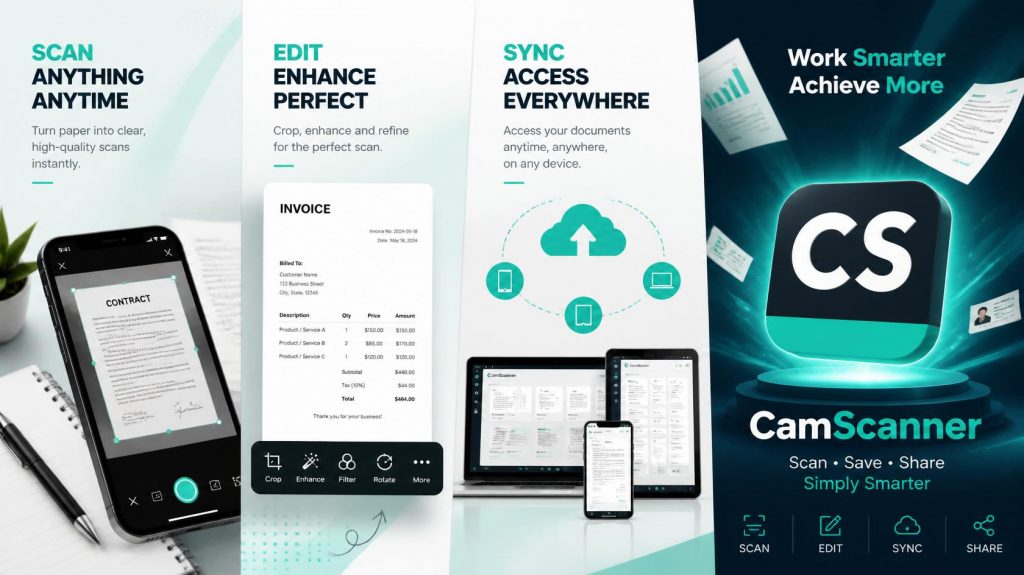
A flatbed scanner usually isn’t available when onboarding happens—especially for interns, hybrid employees, or remote hires signing forms from home or on the go. CamScanner’s PDF scanner app lets you capture a clean PDF with your phone in minutes.
The 5‑minute workflow
- Sign the document.
- Scan it with CamScanner (use Auto Crop + Enhance for a clean, readable page).
- Save it into a dedicated folder, for example:
Work/Onboarding/CompanyName/2026
- Name the file using the template above.
If you do this once on day one, it becomes automatic: sign → scan → save → done.
Build a searchable “proof of work” trail with CamScanner OCR (notes, whiteboards, weekly logs)
A lot of the work that matters for a mid‑year review never makes it into a formal HR system:
- Whiteboard sketches after a planning session
- Handwritten weekly goals and progress notes
- Meeting agendas with decisions written in the margins
If you scan these regularly, you create a lightweight record you can reference later—especially useful for interns and new hires who need to show what they accomplished.
A simple weekly cadence
- Every Friday: scan 1–3 pages of notes (or your weekly status summary)
- Save as: Company_WeeklyNotes_Week##_YYYY.pdf
- Use OCR so you can search later for keywords like “launch,” “client,” “bug,” “metrics,” or “Q3 goals.”
CamScanner’s OCR turns scanned pages into searchable text, so a note from February is retrievable in June instead of buried as an indistinguishable photo.
Work travel expense receipts: batch scan with CamScanner before thermal paper fades
New hires often run into expense reporting for the first time: meals, rideshares, parking, supplies. Receipts can be easy to lose—and thermal receipts can fade, making totals harder to confirm later.
The simplest approach is to batch scan receipts into one PDF per trip or per week.
Batch scanning workflow (2 minutes)
- Put receipts on a flat surface.
- Scan in Batch mode in CamScanner.
- Combine into a single PDF and name it clearly, for example:
Company_TripReceipts_2026-07_Chicago.pdf
- Share/upload when you submit your expense report.
Compliance note (U.S.): electronic storage is recognized for Form I‑9
If you’re scanning employment paperwork, it’s reasonable to ask whether a digital copy is acceptable.
For U.S. employers, USCIS provides guidance for storing Form I‑9 electronically, including scanned copies, as long as the electronic system supports inspection, reproduction, and record integrity requirements. [Source 2]
This article is not legal advice. Treat your scans as a personal backup and follow your employer’s official HR process and policies.
Keep onboarding documents accessible—and protect sensitive information
Once paperwork is scanned, the goal is simple: don’t think about it again until you need it.
Practical habits that help:
- Keep onboarding PDFs accessible across devices (phone + computer), so you’re not emailing files to yourself.
- Protect sensitive items (NDAs, payroll info, ID-related scans) using app/device security options such as passwords or biometric locks, and follow company policy.
(We intentionally avoid security superlatives—use language your compliance team is comfortable with.)
Quick PDF conversions (when onboarding files arrive in mixed formats)
Onboarding files often arrive as a mix: photos sent in chat, Word documents, screenshots, or scans from other people. If you just need a clean PDF to submit or store:
- Convert a photo (JPG/PNG) to PDF: Convert JPG to PDF online – Best Free Online Converter
- Convert a Word document to PDF: Convert Word to PDF online – Best Free Online Converter
This is also useful when you’re helping someone else onboard and they send you “a photo of the signed page”—you can convert it into a shareable PDF fast.
Common onboarding document mistakes (and how to avoid them)
- Keeping everything in your camera roll
→ Export to PDF and save to a dedicated folder.
- Inconsistent file names (hard to search later)
→ Use one naming rule: Company_DocType_YYYY-MM-DD.pdf.
- Scanning only the signature page
→ Scan the full agreement (all pages), not just the last page.
- Waiting until review time
→ Scan weekly; your future self won’t remember what happened in March.
- Storing sensitive documents unprotected
→ Use passwords/biometrics where appropriate and follow company policy.
Conclusion: build the habit before you need it
Most people don’t scan onboarding paperwork because they expect a problem. They do it because paper has a way of disappearing exactly when it would have been useful.
If you’re an intern or new hire in 2026, the simplest professional habit you can build is this:
Sign it → scan it today with CamScanner → name it clearly → save it once.
By mid‑year review season, you’ll have a clean, dated record of what you signed and what you did—without scrambling to reconstruct the first half of the year.
Frequently Asked Questions (FAQ)
What is the best PDF scanner app for onboarding paperwork?
A good onboarding scanner app should produce clear PDFs quickly, organize them into folders, and support search (OCR). CamScanner helps you scan and store offer letters, ID-related documents, and signed agreements in a readable, searchable format from day one.
Can I keep my own copies of onboarding paperwork?
Usually yes, and it’s a smart habit. For official HR compliance documents, always follow your employer’s process. For U.S. Form I‑9 retention rules, refer to USCIS guidance on electronic storage. [Source 2]
Does CamScanner OCR work for handwritten notes?
OCR results vary by handwriting and lighting, but scanning with better contrast and reduced background noise can make notes easier to search and reference later.
How does batch scanning help with expense reports?
Batch scanning captures multiple receipts in sequence and combines them into a single PDF. This keeps an expense report organized and reduces the chance that missing or faded receipts slow down reimbursement.
Can I convert a photo or Word document into a PDF?
Yes. Use CamScanner’s online converters:
- Photo (JPG/PNG) to PDF: Convert JPG to PDF online – Best Free Online Converter
Sources
[Source 1] Sapling (HR/workforce platform) — onboarding statistics (commonly cited: average new hire completes ~54 onboarding tasks/activities).
Publishing note: add the exact Sapling URL + publication year your team is using, to keep citations verifiable.
[Source 2] USCIS — Form I‑9 guidance on electronic storage/retention (I‑9 Central; Handbook for Employers M‑274).
- I‑9 Central: I-9 Central | USCIS
- Handbook for Employers (M‑274): Handbook for Employers M-274 | USCIS