Meta Description: Learn how to scan tareas escolares into clear PDFs, organize multi-page assignments, and enviar tarea to teachers in Mexico through WhatsApp, email, or school platforms with CamScanner.
Introduction
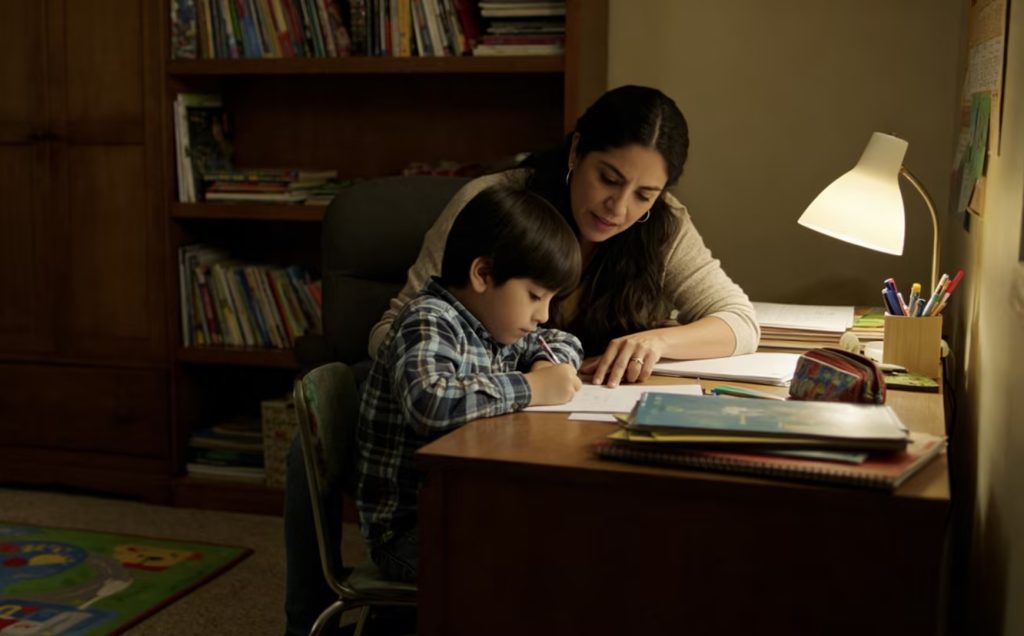
When children bring home worksheets, notebook exercises, drawings, and school projects, parents may also need to prepare and submit their completed work digitally. In Mexico, a teacher might ask families to send tareas escolares (school assignments) through WhatsApp, email, or a designated school platform. The required method depends on the school, teacher, and assignment.
Taking photos with a smartphone is convenient, but several separate images can be difficult to manage. Pages may arrive out of order, handwritten answers may be hard to read, and important details near the edges can be cut off. For multi-page assignments, a well-organized PDF can make the submission easier to review and keep.
CamScanner helps parents turn paper assignments into digital documents. Features such as Auto Crop, Enhance, Batch Scanning, OCR, and PDF Export support different stages of the process, from capturing worksheets to preparing files for sharing.
Quick Answer: How do you scan homework into a PDF?
Open CamScanner and scan each page of the completed assignment. Adjust the page boundaries, improve clarity when necessary, and check that every answer is visible. Arrange the pages in the correct order, then export the document as a PDF. Finally, send it through the channel specified by the teacher.
This guide explains how to scan different types of schoolwork, prepare a submission-ready PDF, enviar tarea to teachers, and use digital copies to support children’s learning.
1. When Should Parents Send Homework as a PDF?
A PDF is not necessary for every assignment. The best format depends on the number of pages, the type of work, and the teacher’s instructions.
A single-page worksheet may be suitable as a photo if the teacher accepts image submissions. However, when an assignment includes several pages, a PDF can keep everything together and preserve the intended reading order.
Consider these common situations:
- One-page exercises: A photo may be sufficient when the teacher requests or accepts an image.
- Multi-page worksheets: A PDF keeps all pages in one file, reducing the need to send several attachments.
- Notebook assignments: A PDF can bring together exercises completed on different notebook pages.
- School projects: Written explanations, diagrams, and supporting materials can be arranged in one document.
- Signed school forms: A digital copy can be submitted when the school accepts scanned documents, while the original can be retained if required.
The main benefit of a PDF is that it creates one identifiable document that is easier to review, share, and retrieve later. It also helps parents avoid sending a mixture of unrelated images when a teacher expects a complete assignment.
Before scanning, check the submission instructions. Some teachers may require one PDF for the entire assignment, while others may ask for separate files or individual images. File-size limits, naming conventions, and deadlines may also vary.
2. How to Scan Different Types of School Assignments with CamScanner
Different tareas escolares require different scanning considerations. A printed worksheet needs readable text, a notebook page may have curved edges, and a drawing needs its original colors and details preserved. Adjusting the scanning process to the material helps prevent important information from being lost.
Handwritten Worksheets
Mathematics exercises, reading comprehension questions, and fill-in-the-blank worksheets often contain small handwriting, numbers, and diagrams.
Place the worksheet on a flat surface with sufficient lighting. Open CamScanner and capture the page. Use Auto Crop to adjust the document boundaries, then check that exercise numbers, instructions, and answers near the edges have not been cut off.
If the scan looks uneven or difficult to read, use Enhance to improve its visual appearance. Pay particular attention to pencil marks and light-colored handwriting. A clearer scan is useful only if the original answers remain visible.
Notebook Assignments
Children often complete homework directly in their school notebooks. These pages can be more difficult to scan because the paper may curve near the binding or create shadows.
Flatten the page as much as possible without damaging the notebook. Position the phone directly above the paper and check that text near the center and edges remains visible.
If an exercise extends across two pages, scan both and arrange them in the correct order. Keep exercise numbers and instructions visible so the teacher can understand how the answers relate to the questions.
Drawings and Creative Projects
Art assignments, diagrams, maps, and classroom illustrations require special attention to color and detail.
Keep the entire artwork within the scanning area and check that the final image preserves its original colors and proportions. Avoid cropping out labels, borders, or other elements that the teacher may need to evaluate.
For projects containing both written explanations and illustrations, scan each page and arrange the materials in the order requested by the teacher.
Signed School Documents
Some school assignments include parent signatures, teacher comments, dates, or other information that must remain visible.
Scan the complete document and verify that all required details are readable before sharing it. If the school requires an original signed document, a digital scan should not be treated as a substitute unless the school explicitly accepts it.
3. How to Create a Complete and Readable Homework PDF
Once the pages have been captured, the next task is to prepare them as one complete document. The goal is not simply to create a PDF, but to make sure the teacher can follow the assignment without missing information or unnecessary pages.
Step 1: Scan the Assignment in a Logical Sequence
Open CamScanner and capture the completed worksheets, notebook pages, or other required materials.
For longer assignments, use Batch Scanning to capture multiple pages in one scanning session. If you scan pages separately, keep the files organized so they can be combined later if needed.
For example, a science project might contain a cover page, written explanation, diagram, and conclusion. Capture or import all required materials before arranging the final document.
Step 2: Correct Cropping and Improve Readability
Check whether each page includes its complete content. Correct any cropping issues and use Enhance when necessary to improve the appearance of printed text and handwritten answers.
Do not assume that a page is ready just because its edges have been detected. Check the details that matter for schoolwork: small numbers, pencil marks, diagrams, and answers written close to the margins.
Step 3: Put the Pages in the Correct Order
A teacher should be able to follow the assignment from beginning to end without guessing which page comes next.
Before exporting:
- Remove duplicate or unnecessary pages.
- Reorder pages to match the original assignment.
- Check that no answers, diagrams, or instructions are missing.
- Confirm that every page has the correct orientation.
- Make sure unrelated documents have not been included.
CamScanner allows users to press and hold a page to drag it into a different position. If two separate documents need to become one, the app also provides a document-merging option.
Step 4: Export and Review the PDF
Once the pages are ready, open the document and select Share → Share as PDF → Save to Device. The exact interface may vary by app version and device.
After exporting, open the saved PDF and review it from the first page to the last. Check that the file contains every required page and that the text, handwriting, and illustrations remain readable.
If the teacher has specified a file-size limit or a particular format, make sure the final document meets those requirements. A successful export does not automatically mean the assignment is ready to submit.
4. How to Enviar Tarea to Teachers in Mexico
After preparing the PDF, parents need to send it through the channel specified by the teacher or school.
In a Mexican family setting, one practical situation might involve a parent receiving homework instructions in a class WhatsApp group, helping a child complete the paper assignment, and sending the scanned result back to the teacher. Other schools may use email or a dedicated platform instead.
A 2026 qualitative study of parent–school mobile communication in one preschool in Monterrey found that families and teachers valued mobile communication for routine updates, while more complex or sensitive topics benefited from planned individual conversations. The study involved only one school and a small group of participants, so it should not be treated as evidence of a nationwide communication practice. It does, however, illustrate why families should follow the communication arrangements established by their own school.
| Submission channel | When it may be used | What parents should check |
| When the teacher accepts assignments through individual messages or a class group | Send the PDF as a document, confirm the recipient, and identify the student and subject | |
| When the teacher requests an email attachment or a more formal submission | Check the recipient address, subject line, attachment, and file-size limit | |
| School platform | When assignments must be uploaded to a designated system | Follow the required format, file-naming rules, upload instructions, and deadline |
Sending Homework Through WhatsApp
When a teacher accepts PDF submissions through WhatsApp, parents can share the exported document directly from their phone.
Where available, send the PDF as a document attachment rather than converting it into separate images. This preserves the prepared file and makes it easier for the teacher to download and review.
Include a short message that identifies the student, subject, and assignment. For example:
“Buenos días, maestra. Le comparto la tarea de Matemáticas de [nombre del estudiante], correspondiente al [fecha]. Muchas gracias.”
This means: “Good morning, teacher. I am sending you [student’s name]’s Mathematics homework for [date]. Thank you.”
If you need to resend a corrected file, briefly explain that it is an updated version. This helps prevent confusion between the original submission and the replacement.
Sending Homework by Email
Email may be appropriate when teachers request formal submissions or need attachments for recordkeeping.
Use a descriptive subject line, such as:
Tarea de Matemáticas – [Nombre del estudiante] – [Fecha]
Attach the PDF and include a short message explaining what is being submitted. Before sending, check that the correct file is attached and that it meets any size or format restrictions.
If the attachment is too large, check whether the school provides an approved alternative for submitting files. Do not replace the required PDF with another format without confirming that the teacher accepts it.
Uploading Homework to a School Platform
Some schools use designated digital platforms to collect assignments. Parents should follow the school’s instructions regarding accepted file formats, upload limits, naming conventions, and submission deadlines.
If the platform accepts PDF files, a document exported from CamScanner can be uploaded. However, scanning and submitting are separate steps: parents still need to complete the upload and check whether the platform confirms successful submission.
If the platform requires one file per exercise, do not combine every assignment into a single PDF. Prepare the files according to the teacher’s instructions.
Use a Consistent File-Naming Format
A descriptive file name helps teachers distinguish submissions, especially when several students or subjects are involved.
For example:
- Nombre_Matematicas_Grado3_2026-11-06.pdf
- Nombre_Espanol_2026-11-10.pdf
- Nombre_Ciencias_Proyecto_2026-11-15.pdf
Using the student’s name, subject, and date makes the file easier to identify. Parents should follow any naming format required by the school if one has been provided.
Homework PDF Submission Checklist
Before sending a scanned assignment, review the following:
- Student information: Is the student’s name, grade, and subject correct?
- Page completeness: Are all required pages included?
- Image quality: Are handwriting and printed instructions readable?
- Page order: Do the pages follow the original assignment sequence?
- File format: Does the document meet the teacher’s requirements?
- File name: Does the name clearly identify the assignment?
- Recipient: Is the file being sent to the correct teacher or authorized school channel?
- Deadline: Is the assignment being submitted on time?
- Submission confirmation: Has the message been sent or the platform confirmed the upload?
This final check can help parents avoid missing pages, incorrect attachments, and unnecessary resubmissions.
5. How to Organize and Save Your Child’s Schoolwork Digitally
Homework submission is a recurring task, but completed assignments can also become useful learning records. Throughout a school year, children may produce worksheets, reading exercises, projects, and corrected assignments that parents may want to revisit.
A simple digital archive helps keep these materials from becoming scattered across a phone’s photo gallery.
Organize Files by Child, Subject, and School Year
For families with more than one child, separating documents by student is a useful first step. Within each child’s collection, create subject categories such as Mathematics, Spanish, Science, English, and Art.
A practical folder structure might look like this:
- Child A
- Mathematics
- Spanish
- Science
- Child B
- Mathematics
- English
- School Projects
Add the school year or semester to file names when useful. This makes it easier to distinguish current assignments from older learning materials.
CamScanner’s folder management tools can help parents group related documents. Parents can also rename documents to make their contents easier to identify.
Choose Which Assignments to Keep
Not every worksheet needs to be stored permanently. Prioritize materials that may be useful for future reference, such as:
- Completed exercises that show progress in a subject.
- Important projects, presentations, and creative work.
- Teacher feedback or corrected assignments.
- Study materials that children may need before an exam.
- School documents that parents may need to consult again.
For example, keeping selected mathematics exercises from different months can help a child revisit a topic before an assessment. Saving every routine worksheet, on the other hand, may make the archive harder to manage.
Use OCR for Text Recognition
CamScanner’s OCR technology can recognize text in supported scanned documents. This can help parents work with text-based school materials without manually retyping all the printed content.
OCR is most useful when a document contains clear printed text, such as worksheet instructions or reading passages. Recognition accuracy can vary with handwriting, image quality, language settings, and page layout. Parents should check recognized text before relying on it, especially when numbers, accents, or handwritten answers are involved.
Enable Cloud Sync When You Need Access Across Devices
Parents who want to access their school documents across supported devices can use CamScanner’s Cloud Sync.
Cloud Sync needs to be enabled and configured through the account’s available settings. Parents should also confirm that documents have actually synchronized rather than assuming every scan is automatically backed up.
A well-organized archive, combined with an enabled sync option, can make it easier to retrieve past assignments, review learning materials, and keep track of schoolwork over time.
6. How to Use Digital Homework Copies to Support Children’s Learning
Scanning homework does not have to end once an assignment has been sent to the teacher. Digital copies of completed exercises, corrected worksheets, and school projects can also become useful study materials. Parents can use selected records to help children revisit difficult topics, prepare for assessments, and recognize their learning progress.
Revisit Exercises That Children Found Difficult
Some assignments are worth keeping because they show which concepts a child struggled with. For example, parents can save mathematics exercises involving fractions or division, English worksheets on verb tenses, or reading comprehension activities that required additional practice.
Before an exam, children can review these selected assignments instead of searching through stacks of old notebooks. Parents can also compare an earlier exercise with a more recent one to see whether the child has become more confident with the topic.
Build Subject-Based Review Collections
A digital collection can be more useful when it is organized around learning needs rather than simply stored by date.
For example:
- Mathematics: Save selected exercises involving calculations, fractions, geometry, or word problems.
- Spanish: Keep reading comprehension worksheets, vocabulary exercises, and writing assignments.
- Science: Collect diagrams, experiment notes, and project explanations.
- English: Group grammar exercises, vocabulary sheets, and reading activities.
Parents do not need to save every assignment. Choosing representative exercises and materials that children may need again keeps the collection manageable.
Find Learning Materials More Easily with OCR
When a collection contains many text-based worksheets, OCR can help recognize printed text in supported documents. This may make it easier to locate a particular topic or passage when reviewing materials.
For example, a parent looking for a worksheet about fractions may be able to search recognized text rather than opening every file individually. Results depend on the quality and content of the original scan, and handwritten answers may not be recognized accurately. Always review the source document before using it for study.
Encourage Children to Review Their Own Work
Digital homework copies can also help children take a more active role in learning. Parents can invite them to look back at an earlier exercise, explain how they would solve the same problem now, or compare a first attempt with a later assignment.
This turns saved homework into a record of practice rather than just a collection of completed tasks. The aim is not to replace teachers’ feedback or formal assessments, but to give children and parents another way to revisit what has been learned.
Conclusion
Managing children’s schoolwork involves more than completing exercises. Parents may also need to scan handwritten assignments, prepare digital copies, communicate with teachers, and keep important learning materials organized.
With CamScanner, families can scan paper assignments, adjust page boundaries, improve visual clarity, arrange multiple pages, and export them as PDFs. These files can then be shared through WhatsApp, email, or school platforms when those channels accept PDF submissions.
By following a consistent process—from scanning and checking pages to naming, sending, saving, and reviewing files—parents can make everyday homework management more efficient. Over time, digital copies can also become useful resources for children to revisit lessons and reflect on their learning progress.
Frequently Asked Questions (FAQ)
1. How do I scan my child’s homework into a PDF?
Open CamScanner, scan each page, adjust the page boundaries, and review the results. Arrange the pages in the correct order, then select Share → Share as PDF → Save to Device to save the assignment as a PDF.
2. How can I enviar tarea to my teacher through WhatsApp?
Export the completed assignment as a PDF, open your phone’s sharing options, select WhatsApp, and choose the teacher or authorized class group. Send the document with a short message identifying the student and subject, if PDF submissions are accepted.
3. Can I combine multiple homework pages into one PDF?
Yes. You can scan multiple pages in one document or combine supported documents in CamScanner. Review the page order before exporting. Check the teacher’s instructions first in case each exercise must be submitted separately.
4. How can I make handwritten homework easier to read in a scan?
Use good lighting, place the paper on a flat surface, and position your phone directly above it. CamScanner’s Auto Crop and Enhance features can help adjust page boundaries and improve visual clarity. Always review the final scan to make sure handwriting and pencil marks remain visible.
5. How can parents use scanned homework to help children study?
Parents can save selected worksheets, corrected exercises, and projects in subject-based collections. Children can revisit difficult questions, review previous lessons, and compare earlier work with more recent assignments. OCR may also help locate printed text in supported documents.
Sources & References
- Villarreal-Rodriguez, S., Berlanga-Torres, C., & Elizondo-Garcia, J. (2026). Parent–school mobile communication in preschool: A qualitative study in Mexico.
https://journals.sagepub.com/doi/10.1177/1476718X261486982