Meta Description
Learn how to manage everyday paperwork with CamScanner in Latin America. Scan receipts, invoices, contracts, and Mexico’s INE credential into organized PDFs with OCR and document-management tools.
Introduction
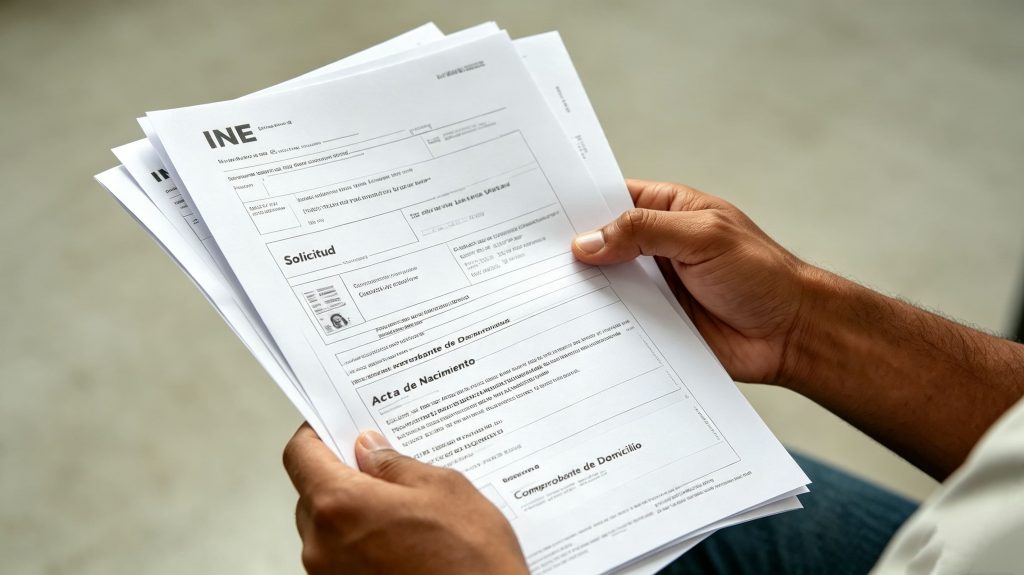
From reimbursement receipts and supplier invoices to contracts, banking documents, and administrative forms, paperwork remains part of everyday professional life across Latin America. Even as workplaces become increasingly digital, paper documents continue to play an important role in business operations and personal administration.
The challenge is no longer simply scanning a document. Important files may be scattered across phone galleries, WhatsApp conversations, email attachments, and physical folders, making them difficult to find when they are needed. A document-management workflow needs to do more than create digital copies: it should also make documents easier to review, organize, retrieve, and share.
CamScanner helps users handle these tasks from their smartphones. With document scanning, Auto Crop, Enhance, OCR, multi-page scanning, and PDF tools, users can turn paper records into more accessible digital documents and manage them through a more consistent workflow.
This guide explores practical ways to manage everyday paperwork with CamScanner across Latin America, including a dedicated guide to scanning Mexico’s INE voting credential into a PDF copy when a receiving institution accepts one.
1. Scan Everyday Paperwork Before You Need It
Receipts, bills, invoices, and administrative forms often become difficult to locate when they are stored in different places. A receipt may remain in a wallet, an invoice in an email attachment, and a signed form in a desk drawer.
Digitizing important paperwork as it arrives helps reduce this fragmentation.
With CamScanner, users can capture paper documents using a smartphone and prepare them for digital storage or sharing.
A practical scanning workflow:
1.Capture the document. Place the paper on a flat surface with adequate lighting and scan it using CamScanner.
2.Use Auto Crop. Let the app help identify the document boundaries and remove unnecessary background.
3.Apply Enhance when needed. Improve the appearance and readability of the scan, then check that the original information remains visible.
4.Review the result. Check names, dates, totals, reference numbers, and other important details.
5.Export and name the file. Save the document as a PDF when appropriate and use a descriptive filename.
For example, a freelancer can scan a receipt after a client meeting instead of leaving it in a bag until the end of the month. A household can digitize a utility bill for future reference, while a small business owner can maintain digital copies of supplier invoices.
The purpose is not necessarily to discard paper originals. Certain financial, legal, or administrative procedures may require original documents, so users should retain them whenever necessary.
2. Organize Multi-Page Documents for Work and Administrative Tasks
Many everyday tasks involve more than one page. Rental agreements, employment forms, school applications, and business records may contain several pages that need to remain together.
Saving each page as a separate photograph can make documents harder to review and submit. When a single PDF is accepted, combining related pages into one file creates a more coherent document package.
CamScanner supports multi-page scanning and PDF workflows that help users capture, review, and prepare documents.
How to prepare a multi-page PDF:
·Capture the pages in the correct sequence.
·Use Auto Crop and Enhance where appropriate to improve framing and readability.
·Review the complete document for missing, duplicated, or incorrectly oriented pages.
·Use the available page-management tools to reorder or remove pages when necessary.
·Export the reviewed document as a PDF.
Consider a freelancer preparing a reimbursement submission. Instead of sending several unrelated receipt photographs, the freelancer can scan the receipts, review their order, and combine them into a PDF if the employer’s process allows it.
The same approach can help prepare application packets, client paperwork, and administrative records. Before submitting a file, always check the recipient’s required format, page limits, file-size restrictions, and rules concerning original or certified documents.
3. Use OCR to Make Document Information Easier to Retrieve
A document can be clearly scanned yet still be inconvenient to work with if its contents are difficult to search or reuse.
CamScanner’s optical character recognition (OCR) technology recognizes text in supported scans, helping users work with information contained in printed documents.
This can be useful in several everyday situations:
·Locating a supplier name or invoice reference in business records.
·Retrieving information from scanned receipts and administrative paperwork.
·Working with text from digitized forms and printed documents.
·Finding information in a collection of scanned materials when searchable text is available.
OCR addresses a different problem from image enhancement. Auto Crop helps frame a document, Enhance improves its visual presentation, and OCR recognizes text so that information can be used in supported text-based workflows.
Recognition results may vary depending on image quality, language, handwriting, and document layout. Users should verify important names, dates, amounts, and identification details against the original document before relying on recognized text.
OCR also does not establish the authenticity or legal validity of a document. It is a tool for making document information more accessible, not a replacement for official verification.
4. How to Scan Mexico’s INE Credential into a PDF with CamScanner
In Mexico, the Credencial para Votar issued by the Instituto Nacional Electoral (INE) is an important identity document. Banks, employers, educational institutions, and other organizations may request identification during their respective procedures.
When an organization accepts a scanned copy, CamScanner can help users digitize their physical INE credential and prepare a PDF containing both sides.
Step 1: Prepare the physical credential
Place your INE on a flat surface with good, even lighting. Avoid glare and shadows that could obscure the printed information or other important details.
Step 2: Scan the front
Open CamScanner and capture the front of the credential. Check that the edges are visible and the photograph and printed information remain readable.
Step 3: Scan the back
Capture the reverse side separately. Pay particular attention to the printed details and QR codes. Ensure that the entire card is visible and that no important information is cut off.
Step 4: Combine both sides into one document
Review the two scans and arrange them in the correct order. Keep the front and back together in the same document so the recipient can review both sides without searching through separate files.
Step 5: Export and review the PDF
Use CamScanner’s available PDF export options to save the document. Open the finished file and check that both sides are included, the text is legible, and the QR codes are clearly captured.
Step 6: Confirm that the receiving institution accepts the copy
Before sending the file, review the instructions for the specific procedure. Some organizations may accept a scanned copy to initiate an application or assemble a file, while others may require the physical credential or additional identity verification.
Important distinction: A PDF created with CamScanner is a digital copy of a physical INE credential, not an official digital credential issued by the INE. It does not automatically replace the original or guarantee acceptance for every procedure.
Milenio’s guide explains that the official Valida INE-QR tool serves a different purpose: it verifies eligible credentials through their QR codes rather than generating a downloadable PDF. Users should follow the applicable INE guidance and the receiving institution’s requirements instead of treating a scanned copy as official verification.
An INE contains sensitive personal information. Share the PDF only with a verified recipient through an appropriate channel, and avoid retaining or distributing unnecessary copies.
5. Build a Digital Filing System That Makes Documents Easier to Find
Scanning creates digital copies, but organization determines how easily those copies can be retrieved later.
Without a consistent filing system, a phone can become another place where important documents get lost among unrelated images and attachments.
A simple approach is to organize documents by purpose, project, or year.
Use descriptive filenames. Include the date, document type, and relevant organization or purpose. For example, 2026-10_Supplier_Invoice_015 is more useful than Scan_001.
Group related documents. Keep household bills, invoices, contracts, and application records in clearly defined categories. For larger collections, grouping documents by year or project can make retrieval easier.
Review files before sharing. Check that the document contains the correct pages and does not include unrelated information.
Use available synchronization features. Where CamScanner Cloud Sync is available and enabled, it can help users access documents across supported devices. Confirm that files have synchronized successfully and maintain appropriate backups for important records.
Protect sensitive documents. Use suitable device and account security, restrict access to identity documents and financial records, and share files only with intended recipients.
These practices can help individuals, students, freelancers, and small business owners create a manageable document system without adding unnecessary administrative work.
6. Make CamScanner Part of Your Daily Workflow
The most useful document-management routine is one that people can maintain consistently. Instead of waiting until paperwork accumulates, users can integrate scanning and organization into the way they handle documents every day.
A practical routine follows four stages:
Capture: Scan important paper documents when they arrive.
Review: Use Auto Crop and Enhance where appropriate, then check that all relevant information remains visible.
Organize: Name files consistently, group related pages, and use available PDF tools to prepare documents for their intended purpose.
Retrieve and share: Use OCR-supported workflows and an organized filing system to locate information, then share the appropriate file through the requested channel.
For example, a business owner can scan a supplier invoice, review the amount and reference number, save it under a descriptive filename, and keep it with the relevant expense records. When the accounting team requests the invoice later, the file is easier to locate.
The same workflow applies to household bills, school applications, employment paperwork, and other everyday records.
CamScanner’s value lies not only in capturing a page, but also in helping users prepare and manage the resulting digital document through the next stages of their workflow.
Conclusion
Everyday paperwork becomes more difficult to manage when documents are scattered, poorly captured, or saved without a consistent system. A practical digital workflow helps users create clearer records, prepare documents for different tasks, and retrieve information when it matters.
CamScanner brings together smartphone scanning, Auto Crop, Enhance, OCR, multi-page scanning, and PDF tools to support these everyday needs. From receipts and supplier invoices to contracts and administrative forms, these capabilities help users across Latin America manage digital paperwork more systematically.
For users in Mexico, CamScanner can also help prepare a PDF copy of a physical INE credential when the receiving institution accepts one. Scanning both sides, checking readability, protecting personal information, and following the applicable submission requirements are essential parts of that process.
Paperwork may remain a regular part of professional and personal life, but managing it can become more straightforward when scanning, organization, and retrieval are part of the same routine.
Frequently Asked Questions (FAQ)
1. How can CamScanner help manage everyday paperwork?
CamScanner helps users scan paper documents, improve scan readability, create PDFs, and recognize text with OCR. Combined with consistent file naming and organization, these capabilities can make digital records easier to retrieve and share.
2. Can I combine multiple scanned pages into one PDF?
Yes. CamScanner supports multi-page scanning and PDF workflows that allow users to bring related pages together. Review the page order and completeness before exporting the final file.
3. How do I scan my INE into a PDF with CamScanner?
Scan the front and back of your physical credential, review both images, arrange them in the correct order, and export the document as a PDF. Acceptance depends on the requirements of the receiving institution.
4. Does an INE PDF replace the original credential?
No. A scanned PDF is a digital copy, not an official digital INE issued by the electoral authority. A procedure may still require the physical credential or additional verification.
5. How can I keep scanned documents organized?
Use descriptive filenames, group related documents into folders, and keep multi-page records together where appropriate. For sensitive files, restrict access and share them only with verified recipients.
Sources & References
1.Gestionar el papeleo diario: por qué CamScanner es el escáner de PDF móvil de referencia en Latinoamérica — PR Newswire, Gestionar el papeleo diario: por qué CamScanner es el escáner de PDF móvil de referencia en Latinoamérica
2.CamScanner – Best AI PDF Scanner App, OCR & Document Management — CamScanner Official Website
3.How to Scan Multiple Pages into One PDF on iPhone and Android with CamScanner – CamScanner – Best AI PDF Scanner App, OCR & Document Management — CamScanner Blog, How to Scan Multiple Pages into One PDF on iPhone and Android with CamScanner