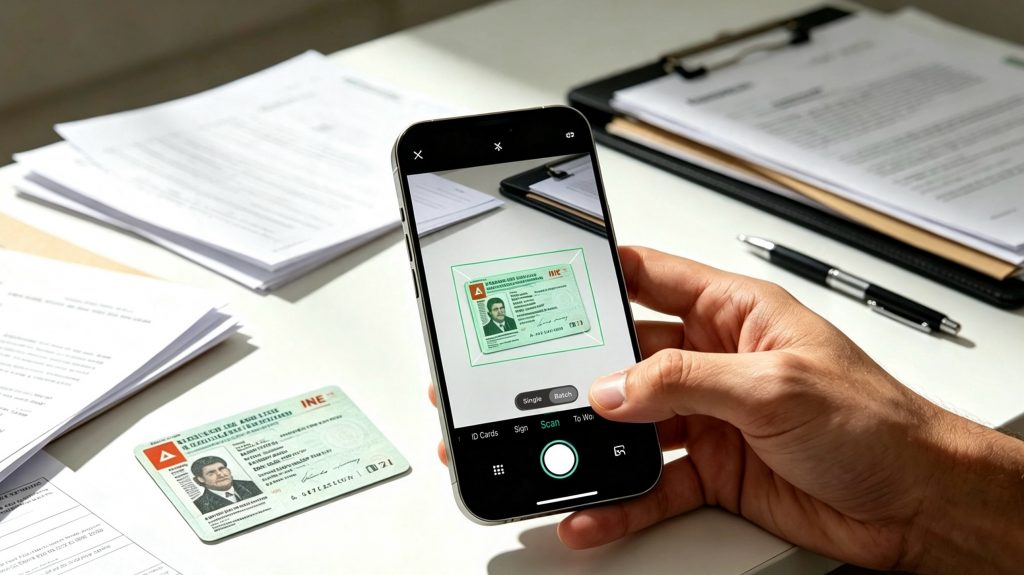
Meta Description: Learn how to scan your Mexican INE card into a PDF with CamScanner. Capture both sides, improve scan clarity, organize supporting documents, and create digital copies that are easier to review, retrieve, and share.
Introduction
From scholarship applications and employment paperwork to banking and everyday administrative tasks, people in Mexico often need to provide copies of their INE voter identification card. Yet preparing a usable digital copy involves more than taking a photo. The card needs to be captured clearly, both sides may need to be included, and the final file must meet the recipient’s requirements.
The challenge often continues after scanning. An INE image may be buried in a phone’s photo gallery, while proof of address sits in a WhatsApp conversation and other supporting documents remain in email attachments or paper folders. When an application deadline approaches, finding the right file and preparing it in the correct format can become another administrative task.
CamScanner helps simplify this process by bringing document capture, image processing, PDF creation, and file organization into one workflow. Users can scan a physical INE card, use Auto Crop to remove unnecessary background, apply Enhance to improve visual clarity, and export the result as a PDF. When additional paperwork is involved, Batch Scanning and PDF tools can help prepare a more organized set of documents.
This guide explains how to use CamScanner to digitize your INE card and manage related identity documents more efficiently, from the initial scan to the final file. A CamScanner scan is a digital copy of your physical card, not an officially issued digital INE credential. Always check whether the receiving institution accepts a scanned copy for your specific procedure.
1. Prepare Your INE Card for a Clear Digital Copy
A useful digital document begins with a clear capture. If the card is blurry, partly outside the frame, or obscured by glare, image-processing tools may not be able to recover the missing details.
Place your INE on a flat surface with a plain background and even lighting. Position the camera directly above the card, keep all four edges visible, and avoid reflections across printed information. Cleaning the camera lens before scanning can also help reduce unwanted blur.
Open CamScanner and select the available ID Card scanning function if it is supported in your version of the app. Follow the on-screen instructions to capture the card. If the dedicated ID card option does not suit your document or available template, you can use the regular document-scanning workflow instead.
Capture the front and back separately when both sides are required. After each capture, review the preview before continuing. Check that the card is fully visible and that names, identification numbers, dates, and other relevant details are legible.
This initial review matters because a digital copy is only useful when it accurately captures the original. Starting with a complete, focused image also makes the subsequent processing and PDF preparation easier.
2. Turn a Card Photo into a More Readable Scan
A regular camera photo may contain unnecessary background or uneven lighting. CamScanner’s image-processing features help address these common problems, making the captured document easier to inspect and manage.
Auto Crop helps focus the image on the card. After capturing the INE, review the detected boundaries. Auto Crop can help remove surrounding table space and produce a more focused scan. Check all four corners carefully, particularly if the card is close to the edge of the frame. If the crop cuts off part of the card, adjust it where supported or capture the card again.
Enhance helps improve the visual presentation. If the scan appears too dark or lacks contrast, apply an appropriate enhancement option. Then compare the result with the physical card. Make sure small characters and identification details remain visible rather than becoming blurred or overly processed.
These functions solve different problems: Auto Crop addresses framing, while Enhance improves the appearance of the captured image. Together, they can help produce a cleaner digital copy without requiring users to edit every image manually.
However, enhancement should never take priority over accuracy. If glare obscures a number or the image is out of focus, rescan the card under better conditions. Do not assume that processing can restore information that was not captured clearly.
3. Create a PDF and Organize Both Sides Correctly
Once the INE images have been reviewed, the next challenge is preparing a file that is easy to submit, store, and retrieve.
If the receiving institution requests both sides of the card, make sure the front and back are included in the same PDF when a combined file is accepted. Use the available page-management tools to arrange the pages in the required order and remove accidental duplicate captures.
Then export the document as a PDF using CamScanner’s available export options. A PDF can keep the required pages together in one file, making it more convenient to review or share than a collection of separate photos.
Before finishing, open the exported file and check the result. Confirm that both sides appear correctly, the orientation is appropriate, and important details remain readable after export. If the file must meet a size limit, use a supported PDF compression option if available, then review the compressed version to make sure the text is still clear.
Give the file a descriptive name, such as INE_Copy.pdf. A consistent naming system makes it easier to locate the document later without opening multiple images to identify the correct one.
Remember that file requirements vary. Some application portals accept one PDF containing both sides; others require separate image uploads or specify a particular file size. Follow the recipient’s instructions rather than assuming that one format will work everywhere.
4. Manage Your INE and Supporting Documents in One Workflow
An INE is often only one part of an administrative task. Depending on the situation, you may also need proof of address, a passport page, a bank statement, or a completed application form. Preparing each item separately without a consistent system can leave documents scattered across different locations.
CamScanner can help bring these tasks into a more organized workflow.
Use Batch Scanning for groups of pages. When you need to digitize multiple pages or supporting paperwork, Batch Scanning can help capture them in one session. You can then review the scans, correct framing where needed, and organize the resulting pages. A card and a full-page utility bill have different layouts, so check each result individually.
Use PDF tools to prepare the required file structure. Depending on the features available in your version of CamScanner, you can use PDF tools to rearrange pages, merge related documents, split files, or compress a PDF. For example, you could keep the INE and proof of address in separate files when an application requests separate uploads, or combine them when the recipient accepts a single document package.
Use OCR when text recognition is useful. Optical Character Recognition can identify text in supported scans, making recognized content easier to search, copy, or reuse in supported workflows. For an INE, OCR results should always be checked against the original card, especially for identification numbers and small printed characters. OCR does not authenticate a document or verify a person’s identity.
Keep files organized for future use. Use consistent filenames and a clear folder structure to distinguish identity documents from application forms and other records. CamScanner also supports cloud synchronization, which can help users access documents across devices when the feature is enabled and available.
The benefit goes beyond scanning one card. Instead of repeatedly searching through photo galleries, messaging conversations, email attachments, and paper folders, users can build a more consistent way to prepare and retrieve the documents they need.
Because identity documents contain sensitive personal information, review account and sharing settings before synchronizing or sending files. Store copies securely and share them only with verified recipients through trusted channels.
5. Check the PDF Before Using or Sharing It
A well-organized workflow saves time, but the final file still needs a quality check. Before submitting or sharing your INE PDF, confirm that:
- The document is complete: all required sides and relevant details are visible.
- The scan is readable: names, numbers, and dates are not obscured by blur, shadows, or glare.
- The pages are correctly arranged: the front and back appear in the requested order, without accidental duplicates.
- The file meets submission requirements: the format, file size, and page arrangement match the recipient’s instructions.
- The document is shared appropriately: the recipient is correct and access permissions protect your personal information.
If a detail is unclear, capture the card again instead of relying on enhancement or OCR to correct it. The goal is to create a faithful digital copy, not to alter the original information.
It is also important to distinguish between a scanned copy and an official digital credential. The Mexican National Electoral Institute (Instituto Nacional Electoral, INE) publishes official information about its voter credential and related procedures. A PDF created by scanning a physical card with CamScanner does not become an officially issued digital INE credential, nor does it replace an official verification process.
If a bank, government agency, school, or employer requires identity verification, follow its specific instructions and use the appropriate official INE service when necessary.
Conclusion
Getting an INE card into PDF format is not just about taking a picture. The document must be captured clearly, preserve the original information, include the required sides, and be organized in a format suitable for the task.
CamScanner helps simplify this process by bringing scanning, image processing, PDF preparation, and document organization together. Auto Crop helps remove unnecessary background, Enhance improves the visual presentation of scans, and PDF tools help prepare the final file. When additional paperwork is involved, Batch Scanning and OCR can support the broader process of digitizing and managing documents.
The same workflow can be useful for passports, proof of address, and other supporting paperwork. By preparing clear scans and keeping related files organized, users can spend less time searching for documents and correcting avoidable scanning problems.
Paperwork may remain part of everyday life, but managing it does not have to become a separate burden. With CamScanner, users can turn physical documents into more manageable digital copies and make routine document tasks easier to handle, while keeping accuracy, privacy, and the recipient’s requirements in mind.
Frequently Asked Questions
How do I scan my INE card into a PDF with CamScanner?
Open CamScanner and select the ID Card scanning option if available. Capture the required sides, review the images, arrange the pages, and export the result as a PDF.
Can I include both sides of my INE in one PDF?
Yes. Use CamScanner’s supported scanning and PDF workflow to organize both sides in one file when the receiving institution accepts a combined PDF. Check the final document before submitting it.
Can CamScanner scan my INE and proof of address?
Yes. You can digitize both documents using the available scanning features and organize them according to the recipient’s requirements. Keep them separate if the application requires individual uploads.
Is a CamScanner PDF an official digital INE?
No. It is a digital copy of the physical card, not an officially issued digital credential. Acceptance depends on the institution and the specific procedure.
Sources & References
- CamScanner Official Website — Information about document scanning and available features.
https://www.camscanner.com/ - Instituto Nacional Electoral (INE) — Official information about the voter identification card and related procedures.
https://www.ine.mx/credencial/ - Instituto Nacional Electoral (INE) — Official guidance on the credential application process.
https://www.ine.mx/credencial/credencial-proceso/