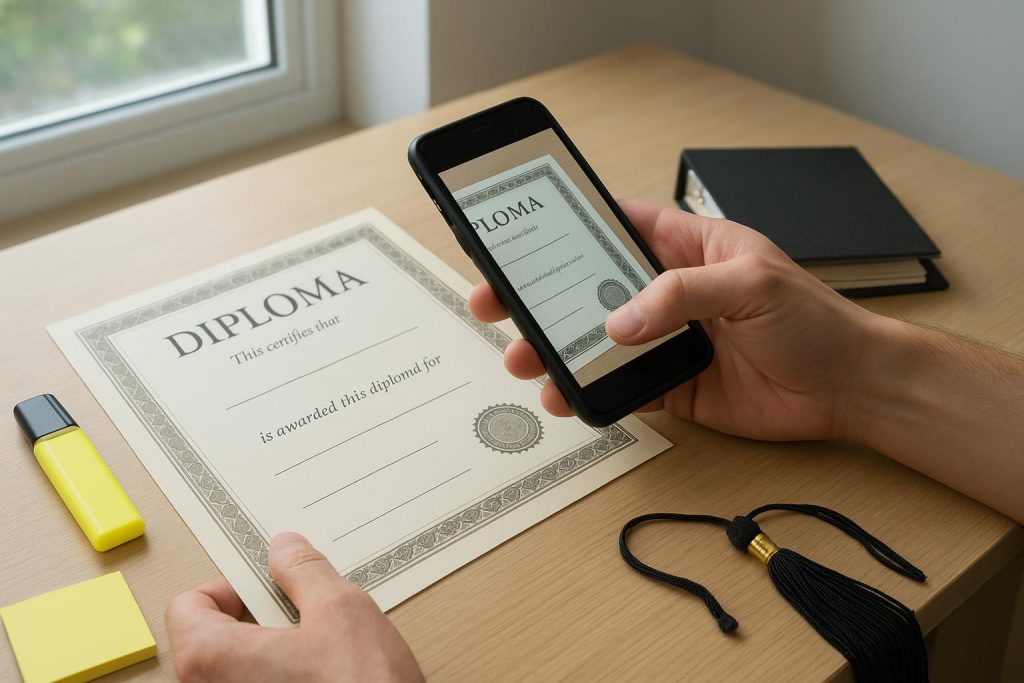
💡 Executive Summary: Digitizing graduation documents (diplomas, transcripts, IDs) requires more than simply taking a photo. A submission-ready digital packet must meet strict portal requirements for file size, format (PDF/Word), and legibility. This guide outlines a professional scanning workflow using CamScanner, covering auto-cropping, multi-language OCR extraction, and PDF compression, ensuring your most vital academic credentials are flawlessly prepared for the global job market, advanced academic pursuits, and critical visa processes as you step into your post-graduate life.
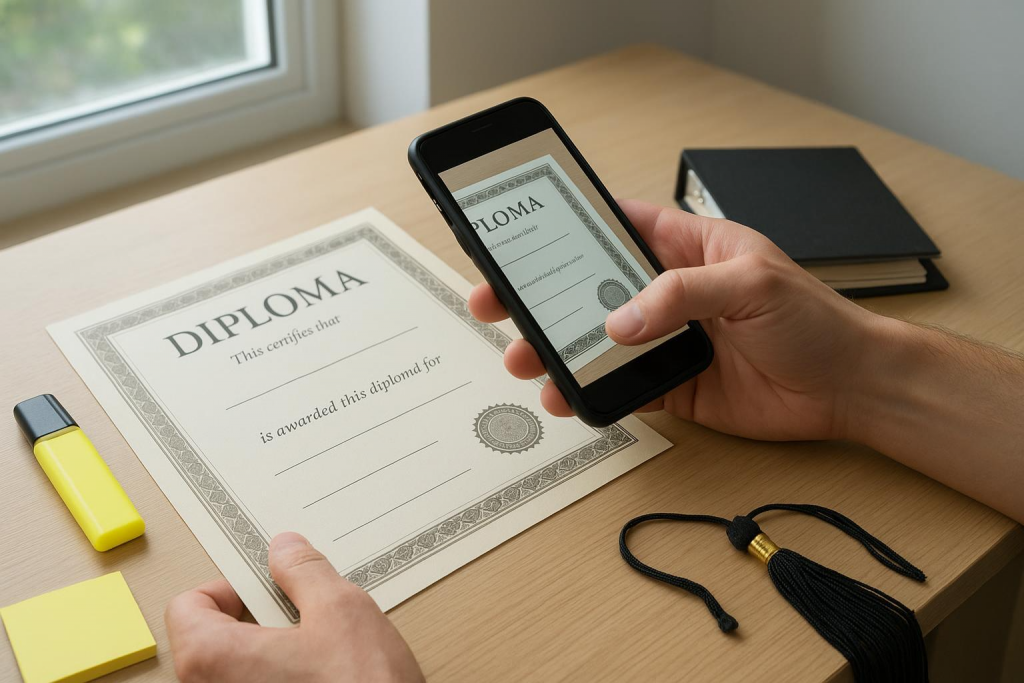
How to Scan Like a Professional: The Quality Assurance Checklist
Good scanning is fundamentally about consistency and optical clarity. When dealing with transcripts or visas, you need the best professional scanner app for official paperwork to ensure your output won’t be rejected by AI-powered Applicant Tracking Systems (ATS) or human HRs. Before converting any physical paper, ensure your raw scan meets these technical criteria to achieve a flawless, portal-ready document scan.
1. Lighting and Angle Optimization
(Pro Tip: How to scan documents like a pro without shadows)
- DO: Use bright, diffused light (e.g., near a window or under a shaded desk lamp).
- DON’T: Use direct flash on glossy certificates. To avoid glare, tilt the light source, not the camera.
- Alignment: Keep your phone’s camera lens strictly parallel to the page to prevent perspective distortion.
2. Capture & Resolution Rules
(Pro Tip: How to get high-resolution PDF scans from a phone)
- The 4-Corner Rule: Ensure all four corners of the document are visible within the frame. Fortunately, using a professional scanner app equipped with smart document digitization with auto-cropping and OCR will automatically detect these edges and correct minor skews.
- The 100% Zoom Test: True high-resolution PDF scanning means your text must remain crisp and perfectly readable when zoomed in at 100% on a desktop monitor.
- Official Marks: For stamped or physically signed pages, ensure the edges of the ink or stamp are high-contrast and clear.
3. Handling Multi-Page Packets & File Sizes
Graduation packets often include multi-page transcripts. Do not scan them as separate images. Rely on smart document digitization to batch-scan all pages in sequence and export them as a single cohesive PDF document, as most application portals only allow “one file” per upload slot. Furthermore, since universities strictly limit file sizes, learning how to create portal-ready document scans under 1MB through your app’s lossless compression feature is crucial for a successful upload.
Formatting Submission-Ready Files (Essential PDF Workflows)
Scanning is only step one. Submissions typically fail on step two: formatting. Here are the precise operations and PDF tools you need to bypass strict portal limitations.
1. Compress PDFs to Meet Portal Upload Limits
Many university or corporate application systems have strict file size limits (often 2MB or 5MB).
- The Solution: Use a PDF Compressor to reduce the file size without destroying text readability or DPI (Dots Per Inch).
- Action: In CamScanner, use the Compress PDF tool to automatically balance size and quality.
2. Reorder, Rotate, and Clean Up Pages
If a transcript page is scanned upside down or out of sequence, fix it before exporting. Small page-order mistakes can trigger unnecessary HR follow-ups and delay your onboarding.
3. Convert Scanned PDFs to Word for Editable Text
You will frequently receive a scanned PDF offer letter or a photo-based certificate but need to extract editable text for scholarship forms or online applications.
- The Solution: Use an OCR-powered PDF to Word converter.
- Workflow: Scan document -> Run OCR -> Export as Word. This allows you to copy-paste exact clauses or IDs without manual typing errors.
- 🔗 PDF to Word Tool
4. Merge PDFs for Single-Upload Portals
When a portal has only one upload button for “Supporting Documents,” do not zip the files (HR hates unzipping).
- The Solution: Merge your ID, transcript, and resume into one continuous PDF file.
- 🔗 Merge PDF Tool
5. Extract or Split Pages for Specific Requests
When an employer asks for “Transcript Pages 1–2 only,” never upload the entire 10-page packet. Use the Split/Extract PDF feature to isolate precisely what is requested.
6. Add E-Signatures to Digital Forms
Graduation season requires signing housing releases, onboarding forms, and scholarship declarations. Use a digital signature tool to sign directly on the PDF, eliminating the tedious “Print -> Sign -> Scan” loop.
The Master Storage System: Organizing Files for Future Reuse
A high-quality scan is useless if you cannot locate it three months later. Implementing a strict file naming and folder structure is critical for job seekers.
The Folder Structure Strategy:
- Master_Graduation_Packet/ (Contains raw, high-res original scans)
- Subfolders/ (e.g., Job Applications, Grad School, Immigration, Licensing)
Real-World Scenarios: Building Your Document Workflows
Below are exact blueprints for handling high-stakes document requests during graduation and job-hunting seasons.
Scenario A: The 24-Hour HR Onboarding Request (US/Global)
- The Challenge: You secure a job offer, and HR requires your ID, degree proof, and transcript within 48 hours. The portal has only one upload slot.
- The Workflow:
- Scan paper diploma and ID using auto-edge detection.
- Merge all documents into one single PDF.
- Compress the merged file to stay under the 5MB limit.
- Rename file to: Onboarding_Packet_[YourName]_2024.pdf.
- Success Metric: HR can seamlessly open the file on mobile, and all text is highly legible.
Scenario B: International Student OPT/PGWP Packets
- The Challenge: Building an immigration-ready packet requires a flawless set of identity and university documents across multiple government portals.
- The Workflow:
- Scan identity pages meticulously (zero cropped edges, no glare on holograms).
- Utilize OCR (Optical Character Recognition) to ensure multi-language text (if applicable) is searchable.
- Keep a dedicated, secure folder solely for immigration submissions to reuse without re-scanning.
Scenario C: Watermarked Submissions for Compliance (E.g., Indonesia/SEA)
- The Challenge: Submitting internship paperwork, IDs, or attendance proofs that require context, traceability, or anti-theft protection.
- The Workflow:
- Scan the required documents.
- Apply a digital Watermark (e.g., “For Internship HR Use Only – Date”).
- Save as a separate [Filename]_Watermarked.pdf version to keep the original clean.
Why CamScanner is the Industry Standard for Document Digitization
Graduation document handling is not about “taking a picture”—it’s about generating legally and professionally acceptable digital assets.
With a global user base exceeding 300 million (as of the 2025 Annual Summary), CamScanner provides an enterprise-grade toolkit built into a mobile app:
- Algorithmic Enhancement: Auto-edge detection, shadow removal, and de-skewing algorithms guarantee flat, bright scans.
- Advanced OCR Engine: Accurately extracts text from complex backgrounds, supporting multi-language parsing (crucial for international students).
- End-to-End PDF Toolkit: Native capabilities to merge, split, compress, and convert formats (PDF to Word/Excel).
- Security & Traceability: Built-in watermarking and secure cloud sync ensure your most sensitive documents are backed up and protected.
🔗 [Learn more: CamScanner’s 2025 Annual Summary]
Frequently Asked Questions (FAQ)
Q: What is the best file format for uploading graduation documents?
A: PDF is the universally accepted standard for official documents. It locks your formatting, ensuring that HR systems or university portals display the document exactly as you scanned it. Unless explicitly asked for a Word document, always export your scans as PDFs.
Q: Why is my scanned PDF too large to upload?
A: High-resolution scans (especially multi-page documents) can easily exceed portal limits (often 2MB-5MB). To fix this without losing quality, use a dedicated PDF Compression tool to reduce the file size while maintaining optical clarity.
Q: How can I copy text from a scanned diploma or certificate?
A: A standard photo or basic scan is just an image. To copy text, you must use OCR (Optical Character Recognition) technology, which is built into tools like CamScanner, to convert the image pixels into searchable, editable text, or use a PDF-to-Word converter.
Next Steps for Graduates:
If you are assembling your graduation packet this week, start by digitizing the “Big Three”: your Transcript, Diploma, and Resume. Once these are processed, cleaned, and properly named, future applications will take minutes instead of hours.
Download CamScanner today to automate your workflow—from raw scan to perfectly formatted PDF.